Get Started Free



Any report that you’ve created in your Salesforce environment can be instantly available in any of your Google Spreadsheets with the help of G-Connector. With G-Connector you can easily import a Salesforce report and automatically refresh it at your desired cadence.
Follow these easy steps to export a Salesforce report into Google Sheets
-
To pull a Salesforce report into the spreadsheet you’ll need to install G-Connector add-on to your Google Drive, log in, and then click the Get Reports item on the add-on menu or Launch and click Import Data ->New from Report from the side panel:

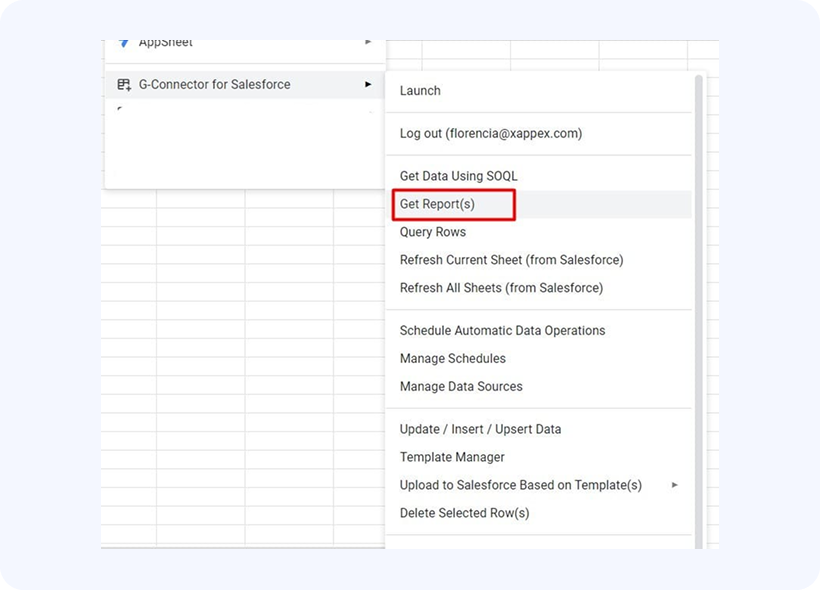
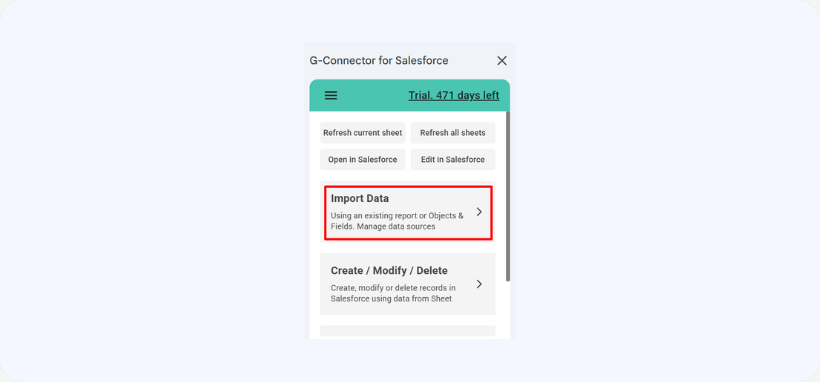
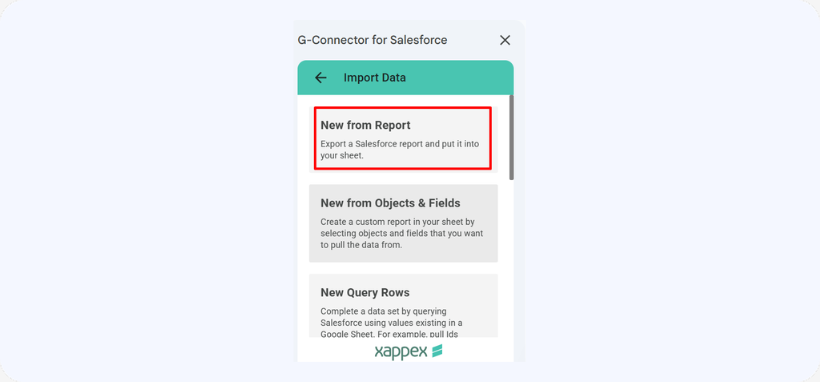
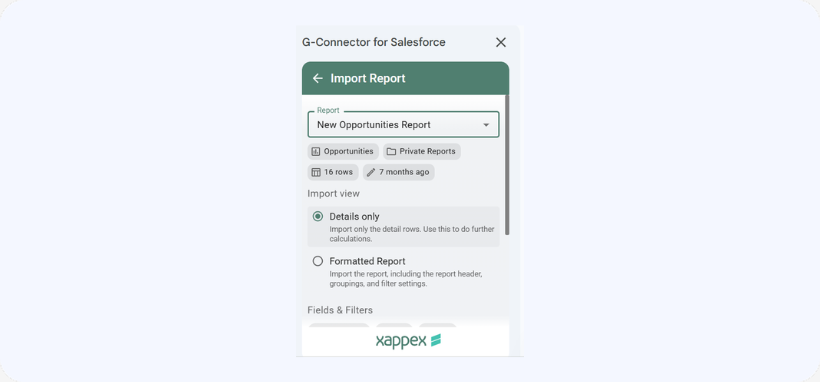
The most recently run reports will appear first. If you haven’t run a report yet, enter a part of its name and click the Search button to find the report you need.
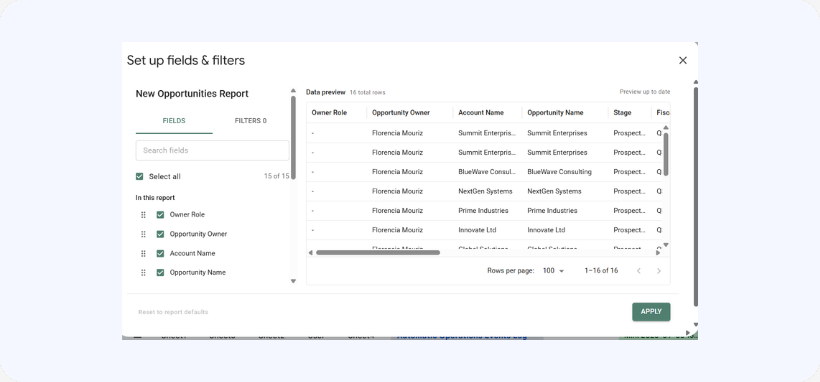
You will also have the option to edit fields and filters.
Learn more abut editing fields and filters.
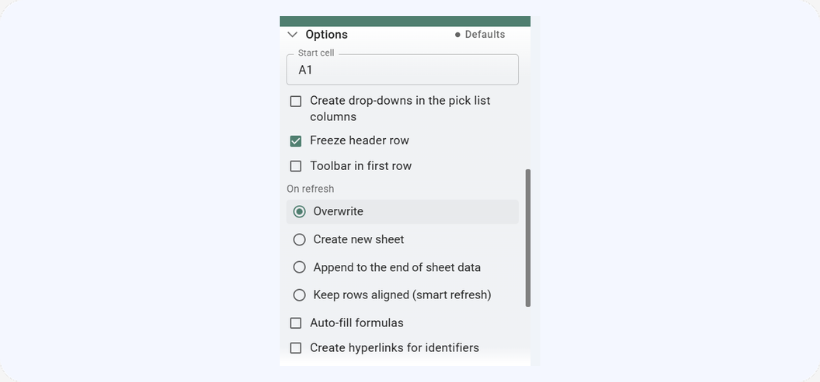
Options section includes:
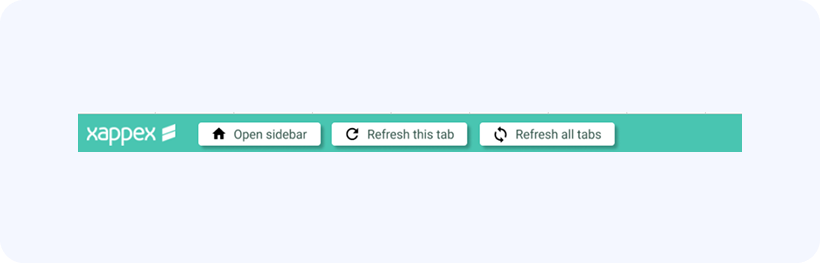
- Toolbar in first row (this option is selected by default. Unselect it and change start cell to disable it.)
Having this checkbox selected will create a toolbar in the first row with buttons to open sidebar menu, refresh sheets and run push templates in the sheet. The start cell of your data will be defined as A2 for this to work.
- Start cell: This option will let you determine the starting point for the report data. It indicates the top leftmost corner of the data when exported to a Google sheet. There can be only one report exported into one given tab.
- Auto-fill formulas: Set this option if you have additional formula columns to the right of your data and would like them to expand/contract as the number of rows in the exported data changes on each refresh.
- Freeze header row: If on, the header row will be frozen after the pull to allow for data scrolling while keeping the headers visible.
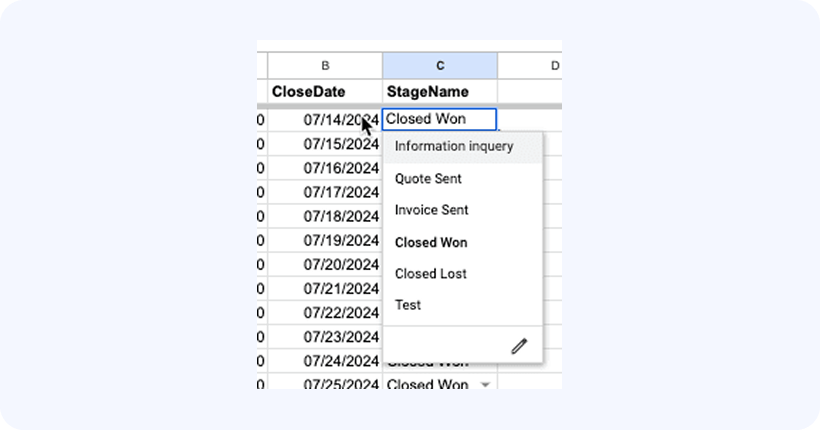
- Create drop-downs in picklist columns: If checked, we’ll add a drop-down into each cell of a column coming from a ‘picklist’ field in Salesforce as follows:
If a report’s format or row limits get in your way, use the SQL converter to turn it into an equivalent SOQL query. This lets you start from a report you’ve already built in Salesforce, then pull the same data as a direct query you can fully customize—adjusting fields, filters, and conditions without the constraints of the report layout. Reach for it whenever you need more control over what’s imported than the report itself allows.
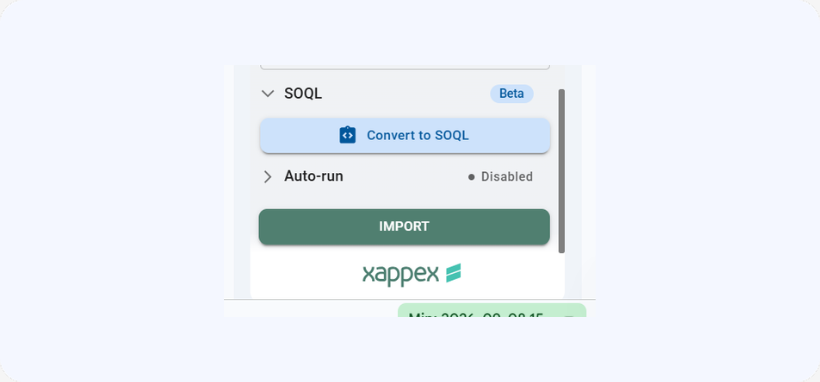
Learn more about converting your report to a SOQL query.
How to refresh the data on your Salesforce report in Google Sheets
- On refresh: Overwrite, Append, Create new sheet
This drop-down determines the behavior of the exported report when it is refreshed using the Refresh current sheet (all sheets) G-Connector command or the refresh performed by the automatic scheduler. The following options are available:
– Overwrite: the default mode. Will overwrite the data in the sheet with newly exported data. This operation will clean up any remaining data (if the exported data is smaller than the one already in the sheet).
– Append: in this mode, each refresh will append all export data at the end of the previously exported data. Having duplicates after the repeated refreshes is highly likely in this mode. Therefore, it’s up to you to make sure the report returns new data or has a DateTime column that is different in all rows to be able to analyze the data by.
– Create new sheet: in this mode, a new timestamped tab will be created for each report refresh. This mode is good if you want to keep snapshots of your data in the same Google sheet. Keeping snapshots of your data in different Google Sheets is achieved using G-Connector’s snapshotting functionality. - Smart refresh: when this box is checked, the report refresh will update existing sheet rows at their positions using record ID. New rows will be added at the end, and missing sheet rows will be removed. Salesforce record ID must be present in the data source to identify the rows and use this feature. This will let you have custom data columns that are not present in Salesforce next to your Salesforce data rows and they will always remain aligned! Also any sorting applied to the data in the spreadsheet will remain unaffected on refresh, even if the source data is sorted differently.
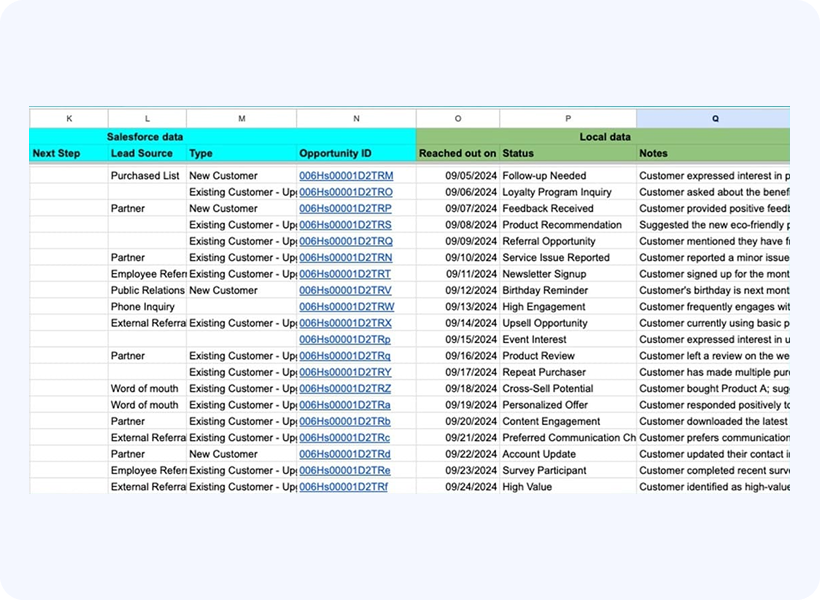
Once you pull a report, it will show up as a card under the Import Data button and it will be possible to run and delete it from there.
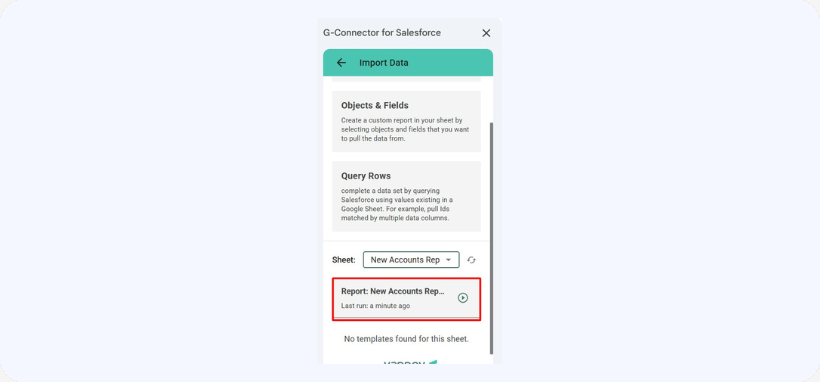
You can select more than one report and click Get report(s). All of them will be pulled from Salesforce and put each into a separate sheet in your workbook.
Learn more about managing your Salesforce reports in Google Sheets.