
 Get Started Free



Working with list views in Salesforce can take a lot of time, especially for organizations that use many custom views. XL-Connector by Xappex provides tools that make list view management easier through Excel.
Download All List Views from Salesforce
You can export all list views from your Salesforce organization into an Excel spreadsheet, giving you a complete overview for easier management.
To download the list views, follow these steps:
-
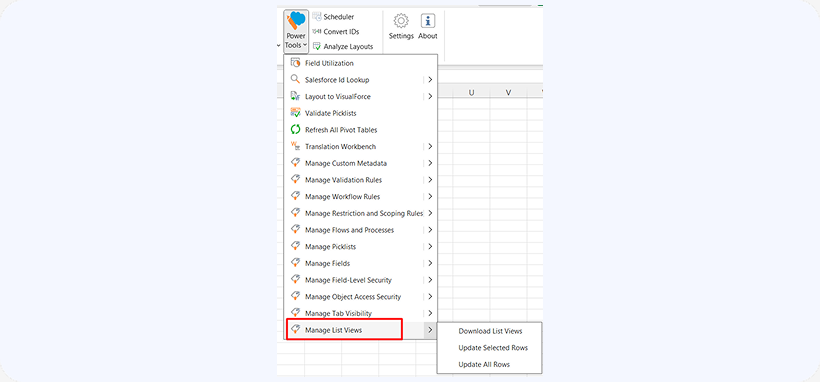
Click on Power Tools -> Manage List Views ->Download List Views.
-
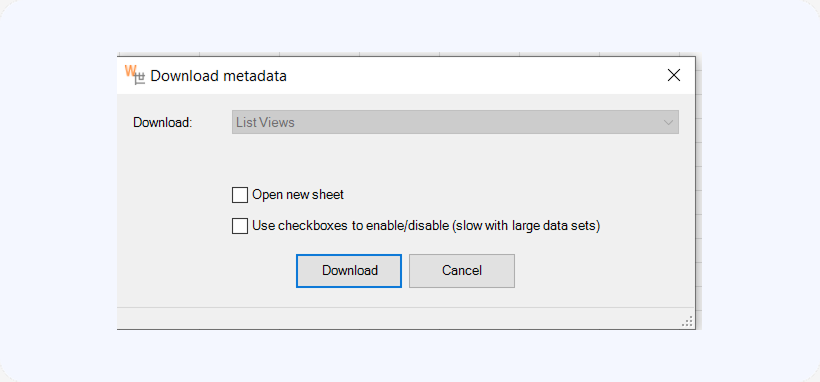
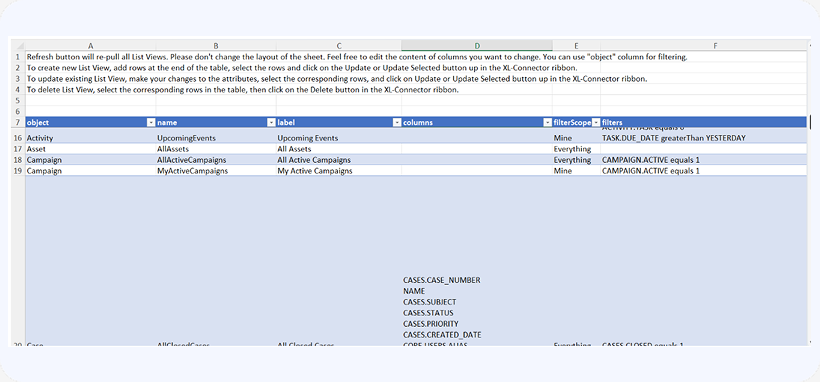
A dialog box allows you to export all views into an existing or new worksheet.

-
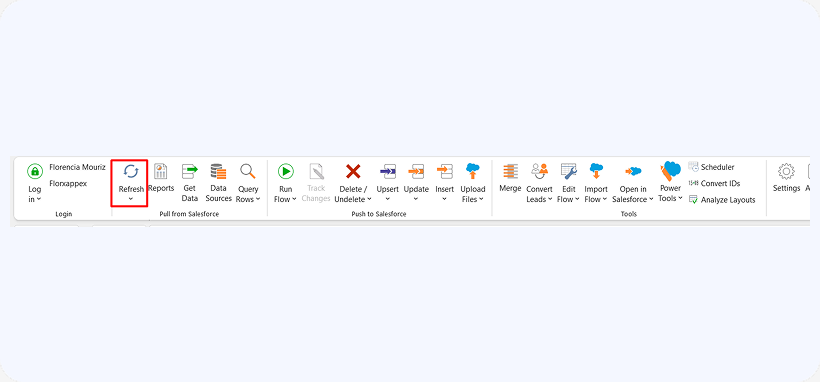
Click the Refresh button to update the list of views from Salesforce.
Update Existing List Views
After exporting, edit the attributes in your spreadsheet. When changes are complete, push updates to Salesforce by following these steps:
-
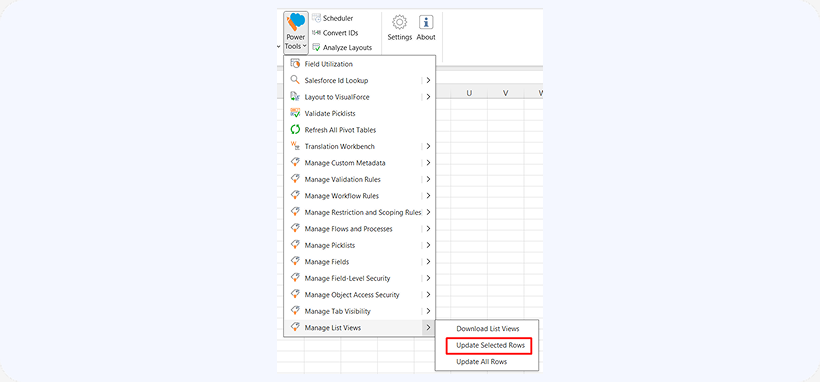
Go to Power Tools -> Manage List Views -> Update Selected Rows or Update All Rows.
Delete List Views
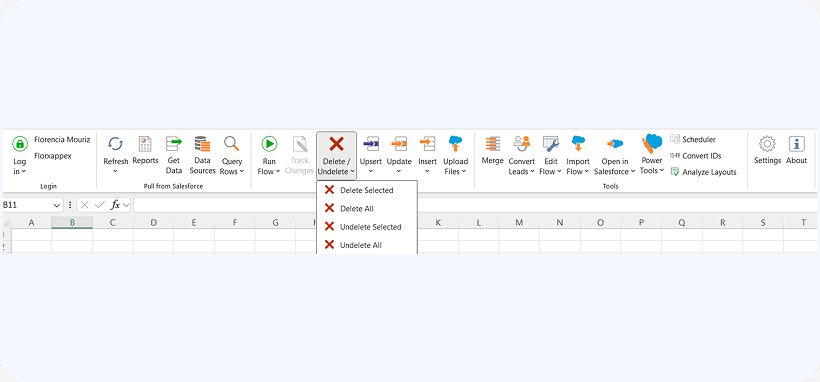
XL-Connector lets you remove list views that are no longer needed. Select the rows for the views you want to delete, then click the Delete button in the XL-Connector ribbon to remove them from Salesforce.
Create a New List View
To add new list views, enter the necessary details in new rows at the bottom of your Excel table. After you have filled in all the required information, select the new rows and click the “Update All Rows” or “Update Selected Rows” button in the XL-Connector ribbon.

